

Keep your website current without opening a page builder.
Drop finished-job photos into a shared folder and a person puts the strongest ones on your site. Type any other change into one box and it reaches your TruLata team as a numbered ticket you can quote back, and a person makes the change.
No site yet? Make one free with the website builder.

Is my site live, and what is it running on?
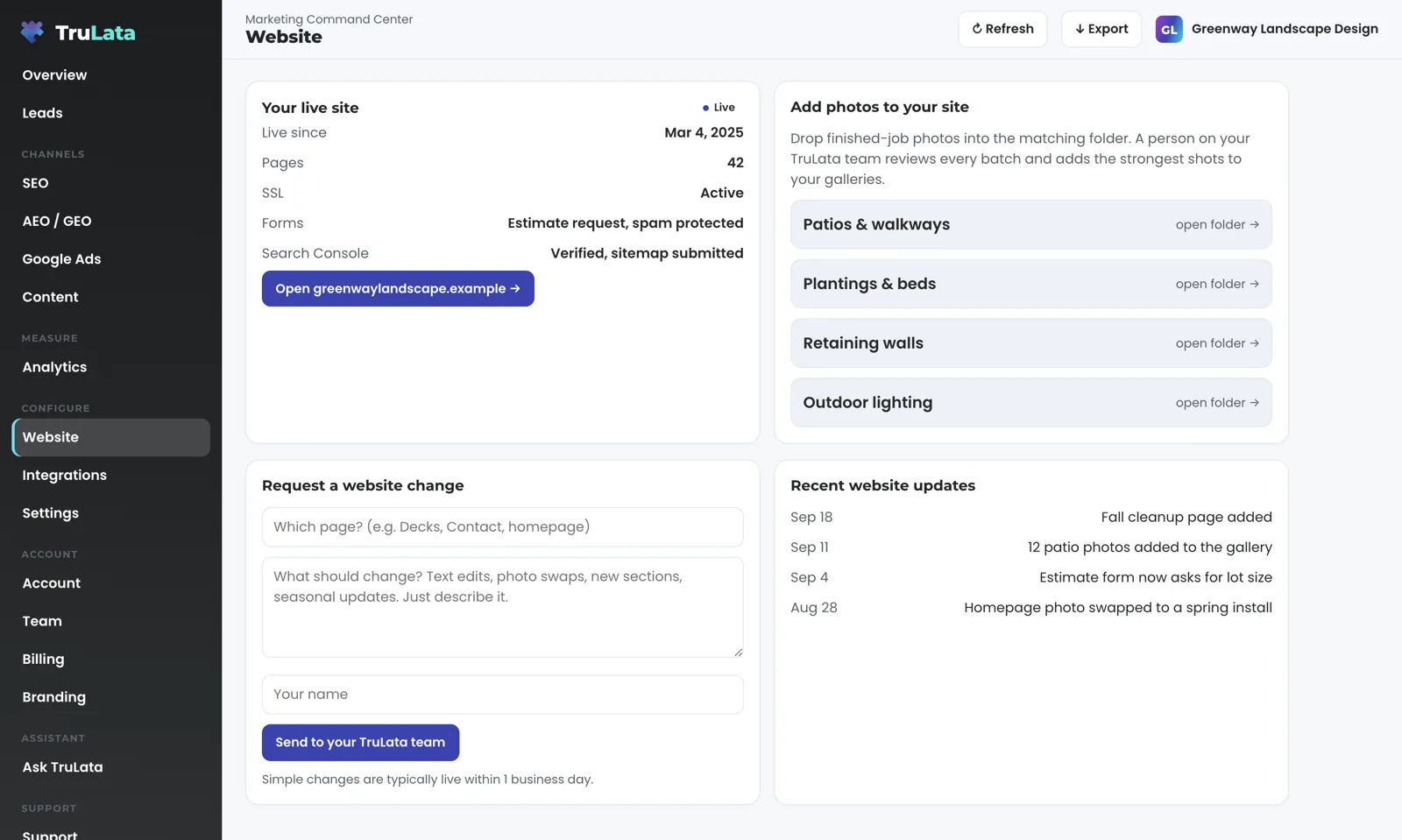
Open the Website view and the first card is your live site. It carries a Live badge, the facts an owner asks about, and a button that opens your domain in a new tab. The rows are chosen for your site: the day it went live, how many pages it has, whether SSL is active, which forms it runs and how they are protected, whether Search Console is verified and the sitemap submitted. Beside it, a Recent website updates card lists the dated changes made to your site. The view sits in the Configure group of the sidebar and appears only where a site has been set up for it.
Counted rows move with the site. On sites set up for it, the page count is read off your sitemap each time the dashboard's data is pulled, and the post count comes from the posts themselves, so a blog that publishes twice a week keeps the card right without anyone retyping a number. Where the site is a storefront, the card reads the product count from the store and the last 30 days of sessions from Google Analytics 4. A row without a live count yet is stated by our team at setup and counted as its source is connected.
The Live badge is a label our team sets. The card carries the facts set for your site, and new rows arrive on it as they are built. The dashboard around it refreshes when you open it: last night's snapshot loads first, the live payload follows from a cache, and a pull runs behind the page when the snapshot is older than five minutes. Press Refresh and a pull starts, two seconds to a little over three minutes, and the page reloads when the stamp moves. A fallback snapshot is baked for every client at 12:01am Central, and a failed pull leaves the previous page up rather than an empty one.
How do I get new job photos onto my site?
Drop them into the folder on the card. The second card, Add photos to your site, links to a shared photo library, one folder per gallery or per service, and each link opens that folder in a new tab. Take the photos on the job, drop them into the folder, and you are done. No page-builder login, no resizing, no ticket to write.
A person reviews every batch. Your TruLata team removes anything that shows a house number or a timestamp and adds the strongest shots to the matching gallery. On a site we host as static files, the gallery change is a re-render and a redeploy, and the photos go live with it.
The review stays with a person on purpose. Every shot from a job is not a gallery, and a photo with the customer's address in the frame should not go up. The review is what makes the folder safe to use without thinking about it, and it is why the card is a folder rather than an upload button that publishes straight to the page.
- Drop the photosInto the folder on the card, straight from the job
- A person reviewsEvery batch
- Clean upHouse numbers and timestamps out
- PublishThe strongest shots onto the matching gallery

Every shot from a job is not a gallery.
How do I get a change made, and how do I know it landed?
Type it into the box. The Request a website change card asks for which page, what should change, and your name. Text edits, photo swaps, new sections, seasonal updates: describe it in plain words and press Send to your TruLata team. Leave the box empty and the screen asks you to say what should change first. A request of up to 4,000 characters goes through as written.
One send does four things. The request is written to a log with your name, the page, your words and the time. A ticket is opened against your account, and the screen shows its number the moment it is sent, so you can quote it back to us. The Slack channel kept for your account on our side gets the request, and so does support@trulata.com, so the whole team sees it. Each leg runs on its own: if one fails, the others still run. If our relay is unreachable at that moment, the screen says so and gives you support@trulata.com.
A person makes the change. The request reaches that person as a logged ticket. It is one of the write paths the screen has, all listed on the Security page: each goes to your team as a ticket or to the lead record, and the engine's own writes to your ad accounts and your site go through each platform's API and land in its change history. The card says simple changes are typically live within one business day. Our replies on the support thread are mirrored onto the ticket every ten minutes, trimmed to their first 600 characters, so you read them without opening your mail. The Support tab lists every ticket with the date it opened, whether it came from the dashboard or from an email, its subject and its status: Open, Waiting on you, or Resolved. A reply from us moves a ticket to Waiting on you and your reply moves it back to Open; Resolved is set by a person. An email to support@trulata.com opens a ticket the same way, one per thread. If the tab is ever unable to load your tickets, it says so and gives you the address, so an empty list always means you have none open.
One send, four legs
- Which page
- What should change
- Your name
- Logged: name, page, words, time
- A ticket number on the screen
- Your account's Slack channel on our side
- support@trulata.com
Can I change the words on my site myself?
Yes, on a site we host as static files, and it happens somewhere else. The editor lives at its own address behind its own login, a one-time PIN sent to your work email, so you need no account and no password. One verified email maps to one site, so nobody opens another client's editor. It edits a set of labelled fields chosen for your site: headings, paragraphs, button text, contact lines and lists.
Press Save and three steps run in order. The fields are validated, the static site is re-rendered from its content file, and it is redeployed. The editor tells you the site is publishing and will update in about one to two minutes. Your public site stays 100 percent static, so a visitor downloads the page and its own assets alone. The editor runs on two client sites today plus concept sites, and the Sites editor page describes it in full.
Layout, theme and the facts several pages depend on stay in the build, so every page agrees with every other after an edit. The editor changes your own words on a site we built, and your visitors receive the re-rendered static files alone.
Press Save in the editor
- ValidatedThe labelled fields chosen for your site
- Re-renderedFrom its content file
- RedeployedStill 100 percent static
- LiveThe editor says so
Do my website leads land on the dashboard?
Yes, by the one road every lead travels. When someone submits a form on your site, the form handler appends the submission to a lead sheet on the server and emails your team. The Leads view reads that sheet, newest first. The website and the Leads view are joined at the form, not at a tracking tag, so the sheet keeps filling on a day when every tag on the site is dead.
Where that is how your forms are wired, the status card says so in one row: every lead emailed and logged to a shared sheet. On one dashboard today, a watch runs every morning at 7:20 Eastern and compares the sheet with what Google Ads and GA4 counted; the Leads page lays out its five checks. Your inbox and calendar stay yours, connected only where you ask for it during setup, and a phone call counts as a lead where your CRM records it or where a call-tracking platform with an API is connected during setup.
Joined at a tracking tag
- Stops counting when the tag dies
- Reads zero on the day it breaks
Joined at the form
- Appended to your lead sheet on the server
- Emailed to your team
- Keeps filling when every tag is dead
The website and the Leads view are joined at the form, not at a tracking tag.
What do I need to set up, and what should I check in the demo?
If we built your site, the setup is ours. Our team sets up the status card, the photo folders and the request box during setup. The photo library is a shared folder, and its link sits on the card. Where your site is on WordPress, Webflow or Shopify, the connection reads site status and publishes through its API, made from the inside with access you grant. Our team makes every connection during setup, and we never ask for your account passwords. Every Google connection is a grant you can revoke from your own console. The Website view is part of TruLata, on all tiers, and support tickets are on all tiers.
Open demo.trulata.com and click Website. It is the same engine code every client runs, on a fictional company, with your name and email to open it, and every number illustrative. Check four things. Read the status card and find the Open button. Open the photo card and count the folders. Type a request into the box and press Send: on the demo the message reads Sent and adds that in a live account it goes straight to your TruLata team; the demo keeps it on the screen. Then open Support, in its own group at the foot of the sidebar, and read the two sample tickets, one from an email and one from the dashboard; click the resolved one and read the reply beneath it.
Then ask about what your own instance adds. Ask for one real ticket, with its number, the Slack post and the support thread that answered it. Ask which of your status rows will be counted and which stated. Ask whether your site takes the editor, which runs on the static sites we host and, by its own path, on WordPress.

What the website view reads and writes.
| What | Where it comes from | How fresh |
|---|---|---|
| Site status card | Set for your site by our team; page and post counts read off the sitemap on sites set up for it | At each pull, live on open |
| Photo folders | A shared photo library, one folder per gallery | Reviewed by a person, then published |
| Change requests | Logged, ticketed, posted to your Slack channel on our side and emailed to support@trulata.com | Live, ticket number on send |
| Support tickets | Every dashboard request and every email to support@trulata.com | Live, our replies mirrored every ten minutes |
| Content editing | Separate editor, one-time PIN login, static sites we host | Per site, live in about one to two minutes |
| Changes to the live site | A person on a ticket, or the editor's checked re-render | Simple changes typically within one business day; the editor in about one to two minutes |
Photos publish after a person reviews them, requests become tickets a person works, and copy edits run through a separate editor that re-renders, checks and redeploys the site on save.
Questions, answered.
Is this a page builder?
It is your site's window inside TruLata: it shows the site's status, takes photos into a shared folder for review, and sends change requests to your TruLata team as numbered tickets. The words themselves you change in the editor, on sites we host.
How do photos get onto my site?
Drop them into the folder for that gallery. A person reviews each batch, removes anything showing a house number or a timestamp, and puts the strongest shots on the site.
Can a change request break my site?
A request is logged, ticketed and sent to a person who knows your site, and that person makes the change, so every change passes through someone before it goes live.
How do I know my request was received?
The screen shows a ticket number the moment you send. The Support tab lists the ticket with its status, and our replies on the support thread appear beneath it within about ten minutes.
Can I edit text myself?
Yes, on static sites we host, through a separate editor at its own address behind a one-time PIN login. A save validates the fields, re-renders the site and redeploys it in about one to two minutes.
Does the view check whether my site is up?
The Live badge is a label our team sets today, and the card carries the facts set for your site; new rows arrive on it as they are built. On sites set up for it, page and post counts are read off the sitemap at each pull.
Do site leads show up here?
On the Leads view. Your site's form handler writes each submission to a lead sheet on the server and emails your team, and the Leads view reads that sheet newest first.
See how it would run
for your business.
15 minutes with TruLata. We show you what your marketing brings in, what each lead costs, and what we would change first.
Book a demo or start a 7-day free trial
No card. It ends on its own after 7 days unless you add one. See pricing.
New here? See what TruLata is. Prefer to write? Send us the one thing you want to know.
Start here: AI marketing platform · AI marketing software · all-in-one marketing platform · marketing automation software · marketing software for small business.
- Refreshed when you open itLive data on page load, never a monthly PDF
- Counted from your own formsLeads recorded server-side, compared daily with Ads and GA4
- Seen in AI answersHow often ChatGPT, Gemini, Claude, Grok, Manus, Google AI Overviews, Perplexity, Meta AI and DeepSeek name you, measured
- Every send loggedProspect emails leave from a review-first queue, and every send is logged.