
 ™
Ask Claude who called this week. Then tell it to mark the job won.
TruLata's connector for Claude reads your own TruLata account: leads, website traffic, search, ads, AI visibility and blog posts. It can also do the work you would ask Addy for on your dashboard, like marking a lead, drafting an article or editing your website draft. Add it from Claude's connector directory, sign in with TruLata and ask.

What can I ask Claude about my marketing?
Anything your TruLata account knows, in your own words. Who contacted you this week and what they asked about. How many leads came from Google Ads this month against last month. Whether website visits are up or down, and from which channel. Which questions AI assistants answer without naming you, and who they name instead. What is planned on your content calendar.
Claude reads the same sources your dashboard reads. A source that is not connected is said to be not connected: ask about traffic on an account with no Google Analytics linked and the answer says so and tells you where to link it, instead of guessing a number.
One chat, your whole account
Leads
- Who contacted you and when
- What they asked about
- Where each one came from
Numbers
- Website visits, now and before
- Search and ads
- Your AI visibility score
Work
- Mark a lead quoted or won
- Draft an article
- Edit your website draft
What does a conversation look like?
Here is the shape of a real exchange from our own testing, with the names changed to a fictional roofing company. You ask whether any new leads came in this week. Claude looks them up and answers: one new lead in the last seven days and none the week before, Casey Sample, who asked about a roof repair through your website form on Tuesday.
You say you sent Casey an estimate. Claude marks the lead quoted on your Leads tab with the note you gave, and says it did. You ask why ChatGPT does not recommend you. Claude reads this week's AI visibility check and tells you which buyer questions you are missing, which companies were named instead and which page on your site comes closest.
An example, fictional roofing company
- Any new leads this week?One in the last 7 days, none the week before: Casey Sample asked about a roof repair through your website form on Tuesday.
- I sent Casey an estimate.Marked Casey Sample quoted on your Leads tab, with your note.
- Why doesn't ChatGPT recommend us?The buyer questions you are missing, who was named instead, and your closest page for each.
A source that is not connected is said to be not connected.
What can Claude change, and what stays with you?
Claude can add a lead you took by phone, record what happened with a lead, save what you tell it about your business into Settings, draft an article, plan your content calendar, ask for fresh numbers and open a support ticket. On a plan that includes it, it can also pause an ad campaign or change a daily budget. These are the same changes the account owner or an admin can make with Addy on the dashboard, no more.
Website changes land in your draft with a preview link; putting them live is a separate step. Claude cannot open another TruLata account, change your plan or billing, delete a lead or remove a teammate. Every tool that changes something is marked as a change, so Claude can ask you before it runs it.
Claude can
- Add and mark leads
- Draft an article and plan your calendar
- Edit your website draft
- Save what you tell it into Settings
Stays with you
- Putting website changes live
- Your plan and billing
- Deleting a lead or removing a teammate
- Any other TruLata account

The changes you could make with Addy, and no more.
Who can connect it, and how do I turn it off?
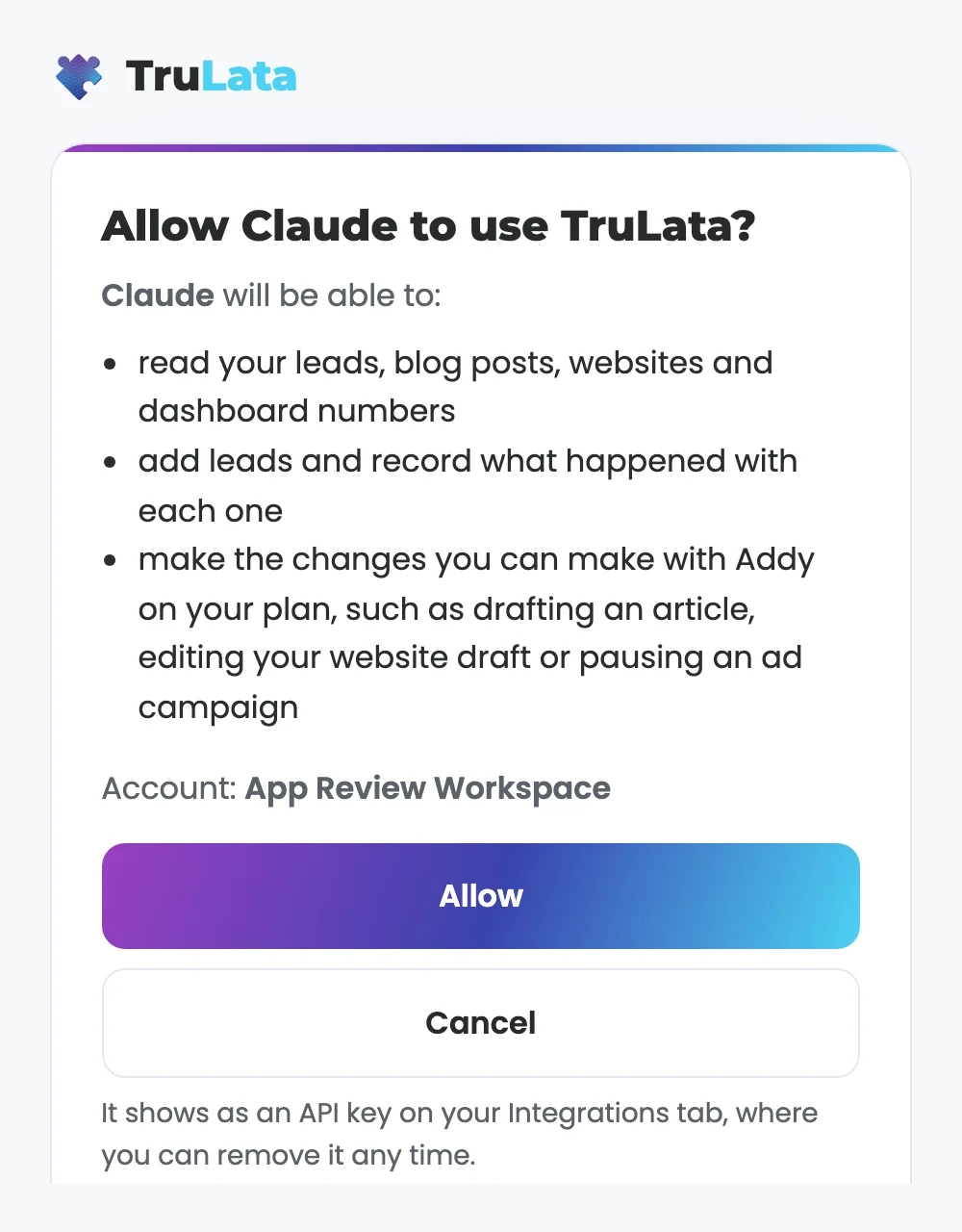
The account owner or an admin. You sign in with TruLata, choose the account and press Allow, and the connection opens that one account and nothing else. Someone without an owner or admin seat cannot allow it.
The connection shows on the Integrations tab of your dashboard as a key named after Claude. Revoke it there and Claude loses access on its next request. Connecting Claude again replaces its earlier key instead of adding another.
Who can connect
- The account owner or an adminSigns in, chooses the account, presses Allow
- Anyone else on the accountCannot allow it
- Connecting Claude againReplaces its earlier key
- Revoke on the Integrations tabClaude loses access on its next request
How do I set it up?
Open TruLata in Claude's connector directory and add it. Claude sends you to TruLata to sign in; choose your account and press Allow. It then works in Claude on the web, the desktop app and the phone app.
Using Claude Code instead? Run claude mcp add --transport http trulata https://api.trulata.com/mcp and sign in the first time it connects. The help article has the same steps, and TruLata in ChatGPT works the same way.
What TruLata for Claude does.
| What | Where it comes from | How fresh |
|---|---|---|
| Where | Claude on the web, desktop and phone, and Claude Code | When you ask |
| Answers from | Your TruLata account, the same sources your dashboard reads | As fresh as each source |
| What it can change | What the owner or an admin can change with Addy on your plan | Every request |
| Website edits | Land in your draft with a preview link; going live is a separate step | Always |
| Who can connect | The account owner or an admin, one account per connection | Once |
| Turning it off | Revoke its key on the Integrations tab | Any time |
| Listing | In Claude's connector directory | Today |
Claude answers from your own TruLata account and does the work you would ask Addy for, only for the owner or an admin who connected it.
Connect Claude: sign in and approve.
- Open TruLata in Claude's connector directory and add it. It works in Claude on the web, the desktop app and the phone app.
- Sign in with TruLata, choose your account and press Allow. Only the account owner or an admin can allow it.
- Ask in plain words, for example: who contacted us this week? The connection then shows on the Integrations tab as a key you can revoke.
Every integration, step by step: the Claude help page and the help center. Stuck? Email support@trulata.com and we connect it with you.
Questions, answered.
Does TruLata work with Claude?
Yes. TruLata is in Claude's connector directory. Add it, sign in with TruLata, choose your account and ask about your leads, traffic, ads, AI visibility and posts.
Can Claude change things in my TruLata account?
Yes, the same changes the account owner or an admin can make with Addy on your plan, such as marking a lead, drafting an article or editing your website draft. Website edits land in your draft; going live is a separate step.
Do I need to paste an API key?
No. You sign in with TruLata and press Allow. Tools that cannot open a browser can use an API key from the Integrations tab instead.
Who can connect Claude to our account?
The account owner or an admin. The connection opens only the account they choose.
How do I disconnect Claude?
Revoke its key on the Integrations tab of your dashboard. Claude loses access on its next request.
Do I need a TruLata account?
Yes. Claude answers from your TruLata account. Anyone can sign up at login.trulata.com/signup.
See how it would run
for your business.
15 minutes with TruLata. We show you what your marketing brings in, what each lead costs, and what we would change first.
Pick a time right here: no card, and no contract to see it. Rather try it alone first? Start a 7-day free trial. See pricing.
New here? See what TruLata is. Prefer to write? Send us the one thing you want to know.
Start here: AI marketing platform · AI marketing software · all-in-one marketing platform · marketing automation software · marketing software for small business.