 ™
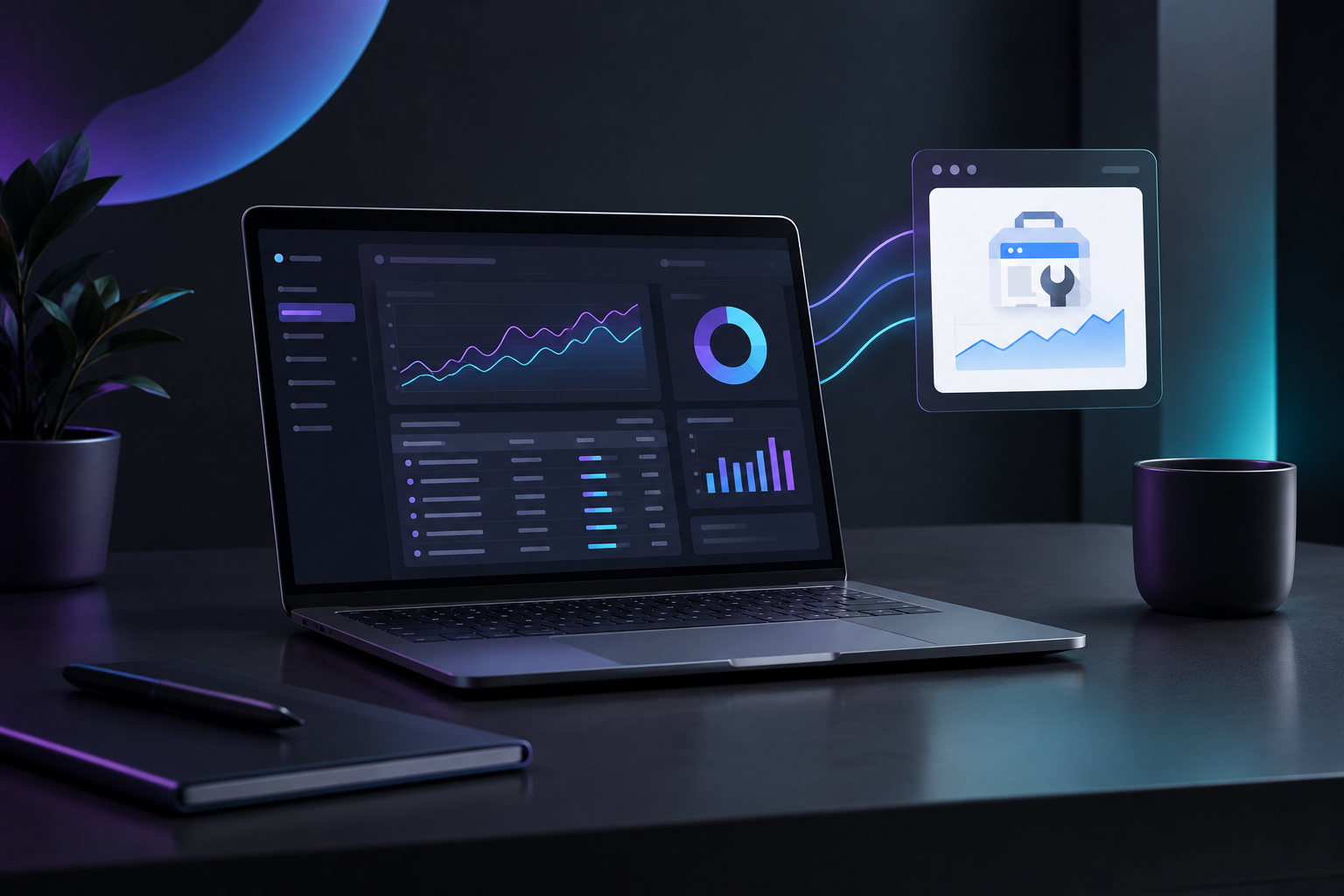

TruLata now connects to Google Search Console, so you can see which searches show your business and which ones earn the click. Add our Google account to your Search Console property, and the search view in TruLata reads the queries your site appeared for. For each one it shows impressions, clicks, click-through rate, average position and the pages that earned them.
The numbers come from Google's own search analytics for the property you connect. They run two to three days behind on Google's schedule, and the view says so on the screen. That way the empty right edge of a chart reads as days still filling in, not as a drop.
What TruLata reads from Google Search Console
- The queries your site appeared for
- Impressions and clicks for each query
- Click-through rate, recomputed from the totals instead of averaged day by day
- Average position, the mean of where your result appeared, weighted by impressions
- The pages that earned the clicks
- The split by device and by country
Pick any date range and add a comparison window, and every query and page shows its prior value and the change. The rankings table leads the page, sorted best position first, and runs to sixty queries. A query with fewer than three impressions in the window stays off the table, because one stray impression is not a ranking. The position column is Search Console's average position, not a rank tracker, and the view labels it that way. The Google Search Console integration page has the full detail.
How to connect
You send one invitation. In Search Console, go to Settings, Users and permissions, Add user, and add addy@trulata.com with Restricted permission. Then, on the Integrations tab of your dashboard, under Give TruLata access to Google, type your site as Search Console shows it and press Add.
Our team maps the property to your business in the per-client map. That is the same map that holds your analytics property and your ads account. The live panel switches on the next time the view opens, and until then the view shows last night's snapshot. Today the view reads one Search Console property per business, the one mapped at setup. If you get stuck, email support@trulata.com and we connect it with you.
What stays in Google Search Console
This connection reads. The product's Search Console scope is read only, so it cannot change anything on your property even if you grant more. No password changes hands. You can revoke the invitation whenever you choose, in the same screen you granted it in.
Who it fits
It fits owners who want to know which searches show the business and whether people click. A position tells you where your result appeared, a click tells you someone chose it, and a lead tells you what the site sent you. That is why the clicks column sits beside the position column, and why the Leads view counts what your own forms recorded. If phone calls matter to your business, our post on how CallRail puts every tracked call on your Leads tab covers that side. For sessions, sources and key events, read about the Google Analytics 4 integration. You can also browse the full integrations directory to see every source, what it reads and how fresh it runs.
Want to see your queries, clicks and positions on one screen? Book a demo of TruLata to see the search view, the rankings table and the comparison window.